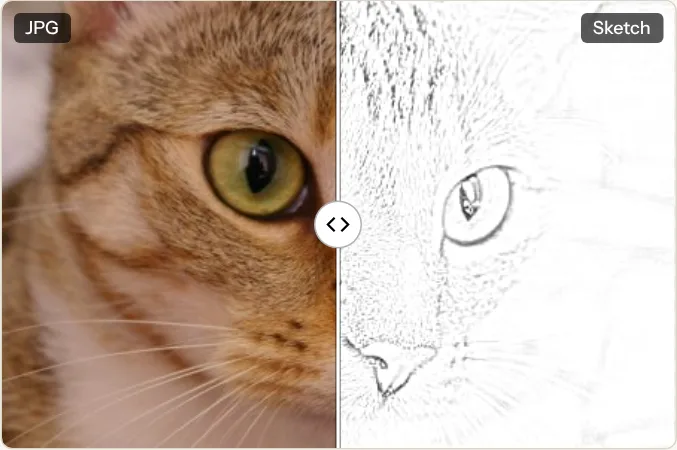
Most photos need the Darkness slider moved before the drawing looks like pencil rather than a faint tracing. At the default settings, a 451 × 300 close-up of a cat came out as thin grey lines on a lot of white paper: the eyes, nose and fur texture were there, but light enough to look washed out. The result appears in about a tenth of a second, so trying settings costs nothing.
Line width: Fine to Bold
The first slider sets how wide each stroke is, from 2 to 20, starting at 8. Toward Fine, the filter picks up small texture such as fur, fabric and hair, and the drawing gets busier. Toward Bold, strokes thicken and soften into something closer to charcoal, and small detail drops out. The width is measured against the size of the photo, so a large phone photo and a small web image look alike at the same setting. Noisy photos, such as shots taken in low light, turn their noise into grain; a bolder line smooths that out.
Darkness: Light to Dark
The second slider runs from 1 to 3 and starts at 1.6. It does not add lines; it deepens the ones already found, so faint edges become visible and strong ones turn nearly black. If the drawing at full Darkness still lacks lines, the photo itself has little contrast; try a finer Line width instead.
What happens to the photo
It is turned to grayscale, and a blurred, inverted copy is laid over it with a “color dodge” blend. Where the photo is flat, the two cancel out to white; where brightness changes, a dark stroke remains. Line width sets the blur, and Darkness bends the result toward black.
The drawing is always black and white, even from a color photo. Use the before/after divider to compare details in the same spot.
JPG or PNG?
JPG is the default and the smaller file: the cat drawing was 27.0 KB, a little less than the 31.6 KB photo. PNG keeps every stroke exactly, which is better for printing or for editing the drawing further. The download is named after your photo with “-sketch” added, such as chelsea-cat-sketch.jpg.